Generate
AI voiceover, music and footage, made for your edit
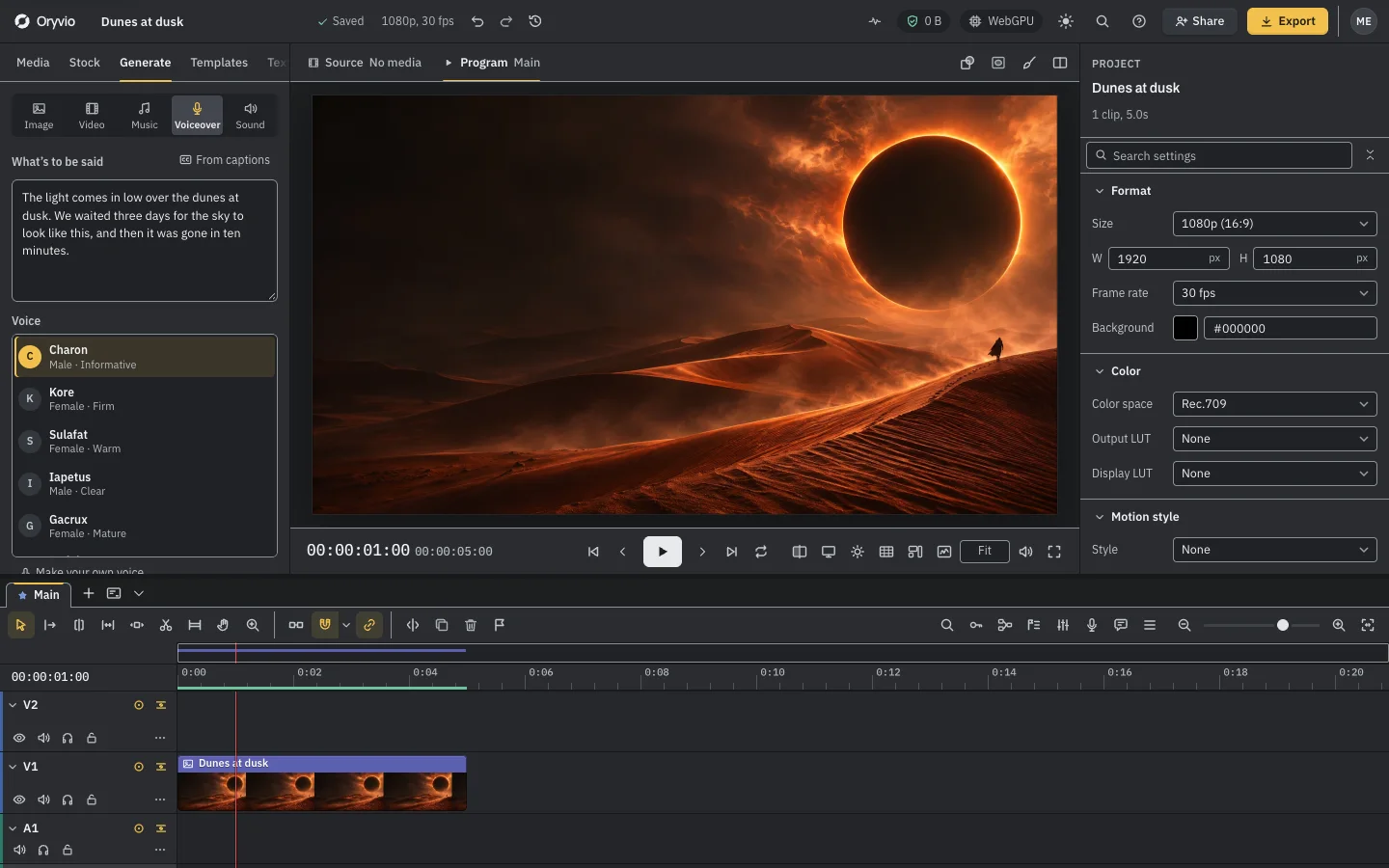
The Generate tab makes what your edit is missing and puts it straight in the bin: a voiceover read from your script or your captions, instrumental music up to five minutes long, sound effects, pictures, and video clips from a description or a still.
- Voiceovers in many languages
- In your own voice
- Straight into the bin
- Oryvio’s cloud AI, with credits
How it works
Step by step
Open Generate
In the media bin, open the Generate tab.
Choose what to make
A picture, a video, music, a voiceover or a sound effect.
Describe it
Write what you want, or paste a script; what it uses in credits is shown before you start.
Use it
It arrives in the bin, ready to add. How it was made, its model and what you asked, stays with it.
In your own voice
Record at least 30 seconds of yourself, say it’s your voice or that you have the speaker’s permission, and voiceovers can be read in it.
In the cloud
What’s sent, and what isn’t
Generating is done in the cloud, through Oryvio’s server: your prompt or script, a picture you choose, and samples of your voice if you make one go to fal.ai, which passes some to the model’s maker. The editor names who before you agree. Your footage is never sent.
Plans
Which plan has it
Free
With credits from a pack: 500 credits for $10
Pro
With credits from a pack: 500 credits for $10
Studio
With its 1,000 credits a month
Yes. What you make is yours to use in your videos, commercially too.
No. Credit packs work on every plan, Free too, and last 12 months.
Yes, from at least 30 seconds of your recordings. Only your own voice, or one you have permission to use.
A picture takes a few seconds, music and sounds a little longer, and a video a minute or two.
The next scene is yours.
Try it on your own footage.
Free to start. No credit card. No watermark.