Caption translation
Translate subtitles without sending them anywhere
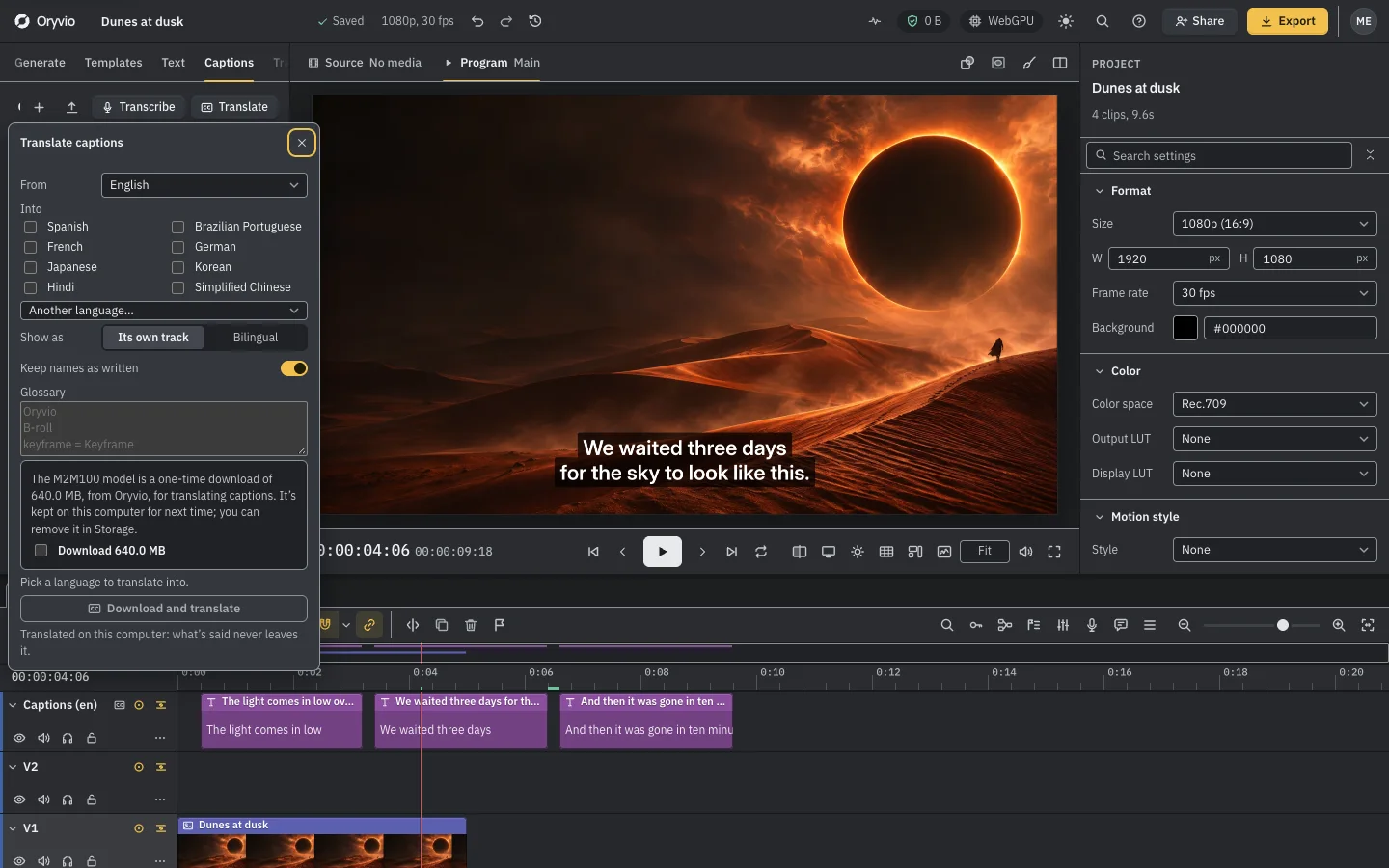
Turn a caption track into another language, or several, on this computer. Oryvio translates whole sentences, keeps each caption’s timing and speaker, and lays the result out as captions again: on a track of its own, or under the original as bilingual subtitles.
- 100 languages
- Bilingual captions
- Names and terms kept
- Runs on your computer
How it works
Step by step
Choose a track
In the Captions tab, show the track and choose Translate.
Pick the languages
Choose the language it’s in, and one language or several to put it into.
Set how it reads
Show it as a track of its own or bilingual, keep names as they’re written, and add a glossary of terms never to translate, or always to say one way.
Translate
Each sentence comes back checked for its names, numbers and terms, and any that still look wrong are listed for you to see to. What you fix by hand is kept if you translate again.
On your computer
Translated in your browser
The translation model, M2M100, runs on this computer, downloaded once and kept in this browser. Your captions aren’t sent to a translation service, and translating never uses credits.
Plans
Which plan has it
Free
Not on this plan
Pro
Into any language, one or many at once
Studio
Into any language, one or many at once
No. The model runs in your browser, so what’s said never leaves your computer.
Yes. Show it as Bilingual, and the translation goes under the original, smaller and in a color of its own.
Not with Keep names as written on. Terms in the glossary are kept as you wrote them, or always translated the way you said.
100, each into any of the others. Burned-in captions in some scripts, such as Chinese, Japanese and Korean, are drawn in your computer’s own font, so a caption file is the surest way to share them.
Translating is part of Pro; try it free for 14 days. Translated tracks already in a project stay, on any plan, and can be edited.
The next scene is yours.
Try it on your own footage.
Free to start. No credit card. No watermark.